Konfiguration |
  
|
Konfiguration |
|
Configuration - General
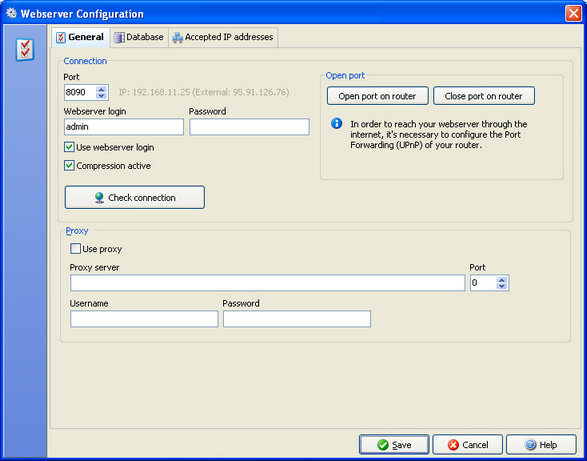
Set the port and password for your XTWebserver in the tab "General". In order to connect to your database through the internet, you need to open the port to the webserver. In order to do so automatically, you can use the button "Open router port" in the configuration. To use this function UPnP must be activated in the router. Please note, that if UPnP is not activated, error messages like "Interface not available" might pop up. In this case you need to open the port manually in your router, using "Port Forwarding". Please refer to your router manual.
If you uncheck the box "Use Webserverlogin", you don't need to login through username and password. Even if this option is available, we strongly suggest to use username and password at any time.
Attention: IF SYNCHRONIZING BETWEEN TWO WINDOWS SYSTEMS, the "Compression aktive" should always be set. This allows a quick transfer of data.
IF YOU ARE SYNCHRONIZING BETWEEN ANDROID AND WINDOWS you must deactivate the compression.
If you are trying to connect through a Proxy server, this will only work if it's an inhouse proxy. A connection through a web-proxy is not possible.
In order to test your connection, enter your external IP address with which you connect to your server from outside your LAN. This way you can double-check if your router connects correctly through the XTWebserver to your server and your database, not getting stopped by the firewall.
Database Connection
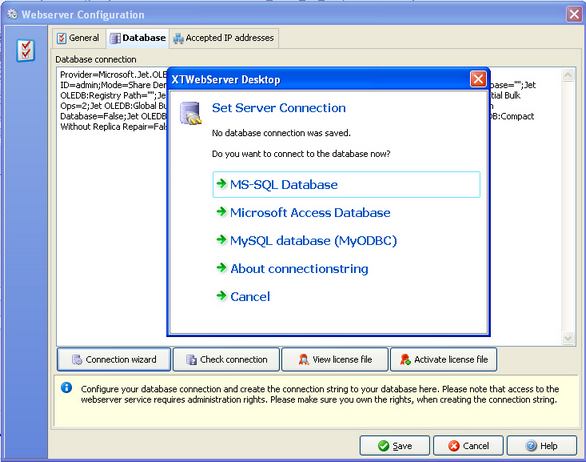
Point to the tab "Database" in order to connect the database with your XTWebserver. Use the wizard to create the connectionstring. Please note, that a connection to a SQL server must be made with Username and Passwort. The Windows-Authentification mode will not work.
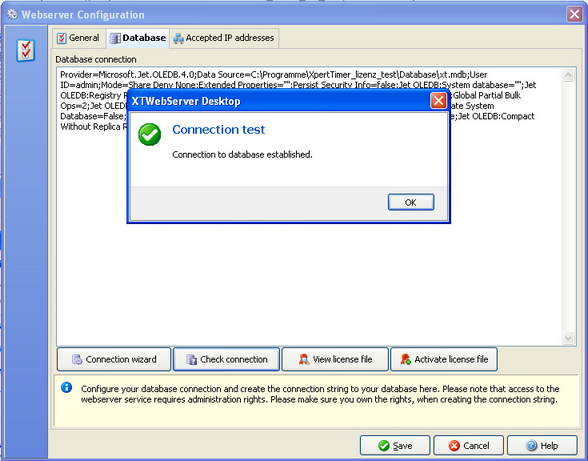
Test the connection, to make sure you are connected to the database.
IP-Addresses
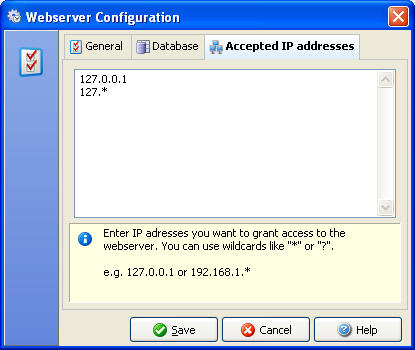
In case you want to allow certain IP Adresses to access the webserver only, you need to enter their IP addresses in this dialog. Wildcards like "*" or "?" are supported.t.
e.g. 127.0.0.1 or 192.168.1.*